DIY Installation Instructions
From a bare VPS to a fully working AI accounts department — step by step. Estimated time: 2–3 hours.
Prefer a hands-off setup? If you'd rather have the Luca General Ledger set up for you by our technical staff, you can get that for just £20 per month — sign up here.
Get it set up for meArchitecture Overview
Before you start, here is a plain-English picture of what you are building and where each component runs.
Luca General Ledger API (Node.js/Docker), PostgreSQL database, Merkle Chain audit files, nginx reverse proxy, and the MCP server that Claude connects to.
Claude desktop app (Co-Work mode) with Luca Skills installed. Communicates with your VPS over an encrypted HTTPS link through the internet. Your inbox folder for dropping documents.
Claude Co-Work Pro (from $20/mo) provides the AI reasoning. No financial data is stored by Anthropic — only the AI conversation context passes through the AI layer.
All journal entries, bank transactions, invoices, and ledger data are stored exclusively on your VPS in PostgreSQL and the Merkle Chain files. Claude Co-Work only receives structured responses from the MCP tools — not raw database content.
Provision a Server on Liquid Web
Liquid Web is a premium managed hosting provider with data centres in the US and Europe — known for excellent performance and 24/7 support. Using our referral link supports Luca's continued development at no extra cost to you.
Step 1.2 Create a VPS
These instructions explain how to create a virtual private server (VPS) for simple testing of the Luca system while it is in beta. We're focusing on giving you the easiest option at the lowest cost — but if you want to use it in production you may want to upgrade to a faster server with backups and management in place.
-
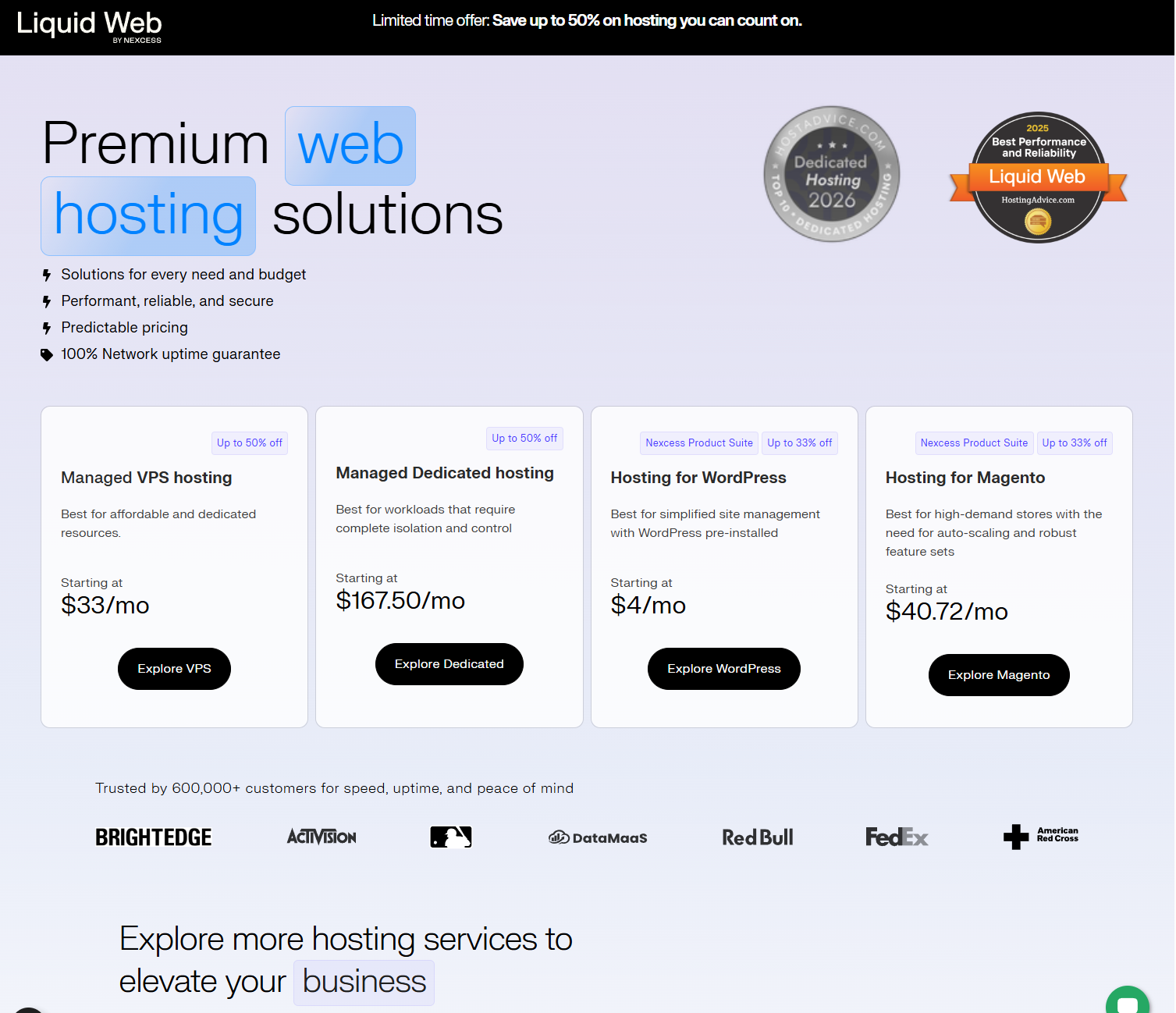
Go to the Liquid Web referral link cart.liquidweb.com/refer-a-friend/574405721575 — you should see this page:
Create Your VPS. Click the "Explore VPS" button under Managed VPS Hosting, then switch the option at the top of the page from managed to self-managed — this reduces the prices shown. Make sure Linux is selected above the list and click Buy now on the cheapest option.
Choose a location geographically close to your main office — this reduces latency when Claude Co-Work on your desktop communicates with the MCP server. Liquid Web has data centres in multiple locations.
In the configuration form, choose the location closest to you, leave management on self-managed for a test server (or choose a management option for professional use), and select Ubuntu 24.04 LTS in the software section. You do not need a control panel. Even the smallest specification server is fine for testing. Backups and extras are optional but recommended for production use.
Choose monthly, yearly or 2-year billing, click Add to cart, and complete the checkout to create your account and make payment.
Once payment is complete you should be redirected to the Liquid Web user portal. If not, go to portal.liquidweb.com. Choose My Servers from the left-hand menu and click the listing for your new server to open the server details page.
-
Wait 1–2 minutes for the server to be fully provisioned — you'll know it's ready when you see a green tick and the word Running below the server name:
Note the server's public IP address — you will need it in the next step.

Step 1.3 Point your domain at the server
Luca requires HTTPS and a valid domain. The automated installer handles the SSL certificate, but your domain must be pointing at the server IP first.
Log into your domain registrar's DNS control panel.
Create an A record pointing your chosen subdomain (e.g.
accounts.yourbusiness.com) to the server's IP address. TTL of 300 seconds is fine.Wait 5–15 minutes for DNS to propagate. Verify with:
# Run this on your computer
nslookup accounts.yourbusiness.com
Once the IP returned matches your server IP, proceed to Part 2.
The installer requests a free Let's Encrypt SSL certificate automatically. Let's Encrypt needs to reach your domain over the internet. If DNS has not propagated, the SSL step fails. Double-check with nslookup first.
Step 1.4 Connect via SSH
Open a terminal (macOS/Linux) or PowerShell / Windows Terminal (Windows) and connect:
ssh root@<your-server-ip>
Use the primary IP shown on the server details page, along with the username and password shown below it under Server Credentials, to log in over SSH.
Install the Luca General Ledger
The entire installation — Docker, nginx, PostgreSQL, SSL certificate, systemd service — is handled by a single script. On a fresh Ubuntu 24.04 server it typically takes 5–10 minutes.
Step 2.1 Run the one-command installer
From your SSH session on the server:
curl -sSL https://raw.githubusercontent.com/roger296/luca-general-ledger/main/install.sh \
  -o /tmp/luca-install.sh && sudo bash /tmp/luca-install.sh
The script downloads first and then runs — this is intentional. Piping directly to bash would prevent interactive prompts from working on all systems.
Installs Docker, Docker Compose, nginx and certbot · Builds and starts the Luca API and PostgreSQL containers · Obtains a free Let's Encrypt TLS certificate · Generates secure random secrets for JWT signing and the database · Configures systemd so Luca restarts automatically after a reboot.
Step 2.2 Answer the installer prompts
| Prompt | What to enter |
|---|---|
| Company name | Your business name — displayed in the Luca admin UI |
| Domain | The full domain from step 1.3 (e.g. accounts.yourbusiness.com) |
| Admin email | Your email — used for the initial admin account and SSL renewal alerts |
| Admin password | A strong password (12+ characters, mixed types) |
Write down your admin email and password immediately. You will need them to generate the Claude Co-Work credentials in Part 5 and to log into the Luca admin panel.
Step 2.3 Verify the installation
# Check containers are running — all should show "Up"
docker compose ps

# Check the GL API is responding
curl -s https://your-domain/api/health | python3 -m json.tool
You should receive {"status": "ok"}. Open https://your-domain in your browser — you should see the Luca login page. Sign in with your admin credentials.
Set Up Claude Co-Work
Luca runs inside Claude Co-Work — Anthropic's agentic AI desktop application. You must have an active Claude Co-Work Pro subscription (from $20/month) to use Luca.
Step 3.1 Subscribe to Claude Co-Work Pro
Go to claude.ai and sign up or sign in to your Anthropic account.
Upgrade to the Pro plan (from $20/month). This is billed directly by Anthropic and is separate from any Luca hosting costs.
Note your Anthropic account email — you will use it to sign in to the Claude desktop app.
Step 3.2 Download and install the Claude desktop app
Visit claude.ai/download and download the installer for your OS.
macOS: Open the .dmg and drag Claude to your Applications folder.
Windows: Run the installer and follow the on-screen steps.
Launch the Claude app and sign in with your Anthropic account.
Confirm your Pro subscription is active — you should see "Pro" in the account menu.
Claude Co-Work is currently a research preview feature of the Claude desktop app. Make sure you have the latest version installed. Check via the app's menu if you do not see Co-Work functionality.
Install the Luca Skills
Luca's intelligence is delivered through Claude Co-Work Skills — structured instruction bundles that tell Claude how to perform accounting tasks. They live in a folder inside your workspace.
Step 4.1 Create a Co-Work workspace folder
Create a new folder on your computer for your Luca workspace. You can do this through File Manager (Windows) or Finder (Mac), or use the command line:
# macOS / Linux
mkdir -p ~/LucaWorkspace

# Windows (PowerShell)
New-Item -ItemType Directory -Path "$env:USERPROFILE\LucaWorkspace"
In the Claude desktop app, open Co-Work mode and select this folder as your workspace when prompted (or via Settings → Co-Work → Workspace Folder → Browse).
Step 4.2 Download the skill files from GitHub
You can either clone the repository or download a ZIP. Point your browser to github.com/roger296/lucaV0.5 to access the repo.
Option A — Clone the full repository (recommended):
cd ~/LucaWorkspace
git clone https://github.com/roger296/lucaV0.5.git luca-source
Option B — Download ZIP: Click the green Code button on the GitHub page → Download ZIP, then extract it and note the location.
If you find Luca useful, please click Star on the GitHub page. Stars help the project gain visibility, attract contributors, and show Anthropic there is community interest. It takes three seconds and makes a genuine difference — github.com/roger296/lucaV0.5
Step 4.3 Copy skills into your workspace
# macOS / Linux
mkdir -p ~/LucaWorkspace/.claude/skills
cp -r ~/LucaWorkspace/luca-source/skills/lucas-general-ledger \
    ~/LucaWorkspace/.claude/skills/
cp -r ~/LucaWorkspace/luca-source/skills/luca-setup \
    ~/LucaWorkspace/.claude/skills/

# Windows (PowerShell)
New-Item -ItemType Directory -Force -Path "$env:USERPROFILE\LucaWorkspace\.claude\skills"
Copy-Item -Recurse "luca-source\skills\lucas-general-ledger" `
    "$env:USERPROFILE\LucaWorkspace\.claude\skills\"
Copy-Item -Recurse "luca-source\skills\luca-setup" `
    "$env:USERPROFILE\LucaWorkspace\.claude\skills\"
Fully quit and relaunch the Claude desktop app so it picks up the new skills.
After restarting Claude, open a Co-Work session in your workspace and type: "What skills do you have access to?" — Claude should list lucas-general-ledger and luca-setup. If they don't appear, double-check the folder path. Skills must be at .claude/skills/ inside your workspace root.
Connect Claude to Your General Ledger's Model Context Protocol Server (MCP)
The MCP connector is the secure bridge between Claude Co-Work on your computer and the Luca General Ledger on your VPS. It uses OAuth 2.0 for secure authentication.
Step 5.1 Generate Co-Work credentials on your server
Open https://your-domain and sign in with your admin credentials.
Navigate to Admin → Co-Work Credentials in the sidebar.
Click + Generate credentials.
You receive three values: the MCP Server URL (
https://your-domain/mcp), a Client ID, and a Client Secret.
Copy it immediately and store it in a password manager. If you lose it, regenerate new credentials — the old pair will be invalidated.
Step 5.2 Add the connector in Claude Co-Work
Open the Claude desktop app.
Go to Settings → Customize → Connectors → Add connector.
Fill in the form:
| Field | Value |
|---|---|
| Name | My Luca Ledger (or any name you prefer) |
| Remote MCP Server URL | https://your-domain/mcp |
| OAuth Client ID | The Client ID from Step 5.1 |
| OAuth Client Secret | The Client Secret from Step 5.1 |
Click Connect. Your browser will open the Luca login page for OAuth authorisation.
Sign in with your Luca admin credentials and click Authorise.
Return to the Claude app. The connector should show as Connected with a green indicator.
Step 5.3 Verify the MCP connection
In a Co-Work session in your workspace, type:
How many MCP tools do you have access to?
Claude should report access to 50 Luca MCP tools. If it reports zero, see the troubleshooting section below.
Your First Luca Session
Server running, Skills installed, MCP connector active — you're ready. Here is how to wake Luca and run your first accounting operations.
Step 6.1 Wake Luca
In a Co-Work session in your workspace, type:
Wake Luca
Claude will load the lucas-general-ledger skill and confirm Luca is active and connected to your General Ledger, with a summary of your current ledger state.
Step 6.2 Review your Chart of Accounts
Show me the current Chart of Accounts
Luca ships with a UK SME default Chart of Accounts. Customise it conversationally:
Add a new expense account called "AWS Infrastructure" under code 7200
Rename account 4000 to "Online Sales Revenue"
Step 6.3 Example commands to explore
Financial reports:
Show me the Profit and Loss for this month
What is the current balance sheet?
Who are my top 5 overdue debtors?
What is our VAT position for Q1?
Posting transactions:
Post a purchase invoice from Acme Ltd for £450 + VAT, dated today, for office supplies
Record a payment received from Johnson & Co for £2,340 against invoice INV-0042
Post a bank transfer of £5,000 from current account to savings account
Bank reconciliation:
Start a bank reconciliation for the current account
Import this bank statement and match any transactions you can
Document Inbox and Scheduled Tasks
Luca can process financial documents — invoices, receipts, bank statements — automatically. Set up a watched folder and Luca will classify and post them without manual description.
Step 7.1 Create your document inbox folder
# macOS / Linux
mkdir -p ~/LucaWorkspace/inbox
mkdir -p ~/LucaWorkspace/inbox/processed

# Windows (PowerShell)
New-Item -ItemType Directory -Force -Path "$env:USERPROFILE\LucaWorkspace\inbox"
New-Item -ItemType Directory -Force -Path "$env:USERPROFILE\LucaWorkspace\inbox\processed"
Drop documents into inbox/. Luca moves them to inbox/processed/ after handling them.
PDF invoices and receipts, CSV bank statement exports, OFX and MT940 bank feeds. Drag and drop files directly into the Co-Work chat window, or place them in the inbox folder and ask Luca to process them.
Step 7.2 Process documents manually
Process all documents in my inbox

# Or with a specific file attached or referenced:
Post this invoice to the ledger
The gl-document-posting skill activates automatically, reads each document, identifies the type, extracts key fields, determines the correct accounting treatment, and posts the journal entry.
Step 7.3 Set up a nightly scheduled batch task
For fully automated daily processing, set up a scheduled task in Claude Co-Work. In a Co-Work session:
Set up a scheduled task for Luca's nightly batch processing
Claude will guide you through the setup. Specify:
- Schedule: Daily at 02:00 (runs while you sleep)
- Task: Run Luca's nightly batch — reconcile bank feeds, process inbox documents, prepare VAT data, generate exception report
- Workspace: Your LucaWorkspace folder
Trigger a test run immediately to verify:
Run the Luca batch now
Processes inbox documents · Runs bank reconciliation and auto-matches high-confidence transactions · Flags uncertain matches for your review · Computes FX revaluation adjustments · Updates aged debtor/creditor reports · Prepares VAT data · Sends a summary of exceptions needing a decision.
Step 7.4 Morning briefing
Once the nightly batch has run, ask Luca for a briefing:
Wake Luca
Give me a morning briefing
Luca will summarise what happened overnight, what was reconciled automatically, and what needs your attention today — a CFO-level view of your financial position in under a minute.
Troubleshooting
MCP connector shows "Not Connected"
- SSH to the server and run
docker compose ps— all services should show "Up". - Test the endpoint directly:
curl https://your-domain/mcpshould return a JSON-RPC response. - Rebuild the containers:
docker compose up -d --build - In Claude, disconnect and reconnect the connector — the OAuth token may have expired.
"Invalid client" error during OAuth
- Regenerate credentials: Admin → Co-Work Credentials → + Generate credentials.
- Re-enter the new Client ID and Client Secret in Claude's connector settings.
Skills not appearing in Co-Work
- Skills must be at
.claude/skills/inside your workspace root — not in a sub-subfolder. - Fully quit and relaunch the Claude desktop app after copying skills.
- Type: "What skills do you have?" — the skills must appear in the list to be active.
Installer fails at SSL certificate step
- DNS has not propagated yet. Run
nslookup your-domainand confirm it returns your server IP. - Port 80 must be open on the server for the Let's Encrypt HTTP-01 challenge. Check Liquid Web firewall settings.
- Re-run the installer:
sudo bash /tmp/luca-install.sh
Useful Server Commands
# Check all containers are running
docker compose ps

# View recent API logs
docker compose logs api --tail=50 -f

# Restart all services
docker compose restart

# Update to the latest Luca version
git pull && docker compose up -d --build
docker compose exec api npm run migrate

# Check disk space (chain files grow over time)
df -h

# Verify Merkle chain integrity (or ask Luca: "Verify the chain")
curl -s https://your-domain/api/chain/verify | python3 -m json.tool
Getting Help
| GitHub Issues | github.com/roger296/lucaV0.5/issues — bugs and technical questions |
| Contact eTail Support | luca@etailsupport.com · +44 1227 39 0441 |
| Customisation | Custom packages from £500 — luca-accountant.com/luca-signup/ |
| Security issues | security@lucaledger.com — responsible disclosure |
| Technical Glossary | luca-accountant.com/glossary/ — plain-English explanations of every technical term |
Prefer to Skip the Setup?
Keep self-hosting for free, get Luca fully managed from £20/month, or commission a custom build from £500. Claude Co-Work Pro (from $20/month) is still required in every case.